How to Share Your Digital Business Card at Networking Events
10/27/2026

At a networking event you get about thirty seconds between “nice to meet you” and the next person walking over. That is the whole window for swapping details, and hunting for a paper card, spelling out your email address or waiting while someone downloads an app uses up most of it.
A digital business card fixes this, but only if you can share it quickly wherever you are: a busy drinks reception, a conference hall with weak signal, a video call, a follow-up email the next morning. This guide covers each of those step by step, along with the networking habits that turn a quick scan into a real business relationship.
New to digital cards? Create your free IDQR card before you read on, so you can try each method as you go.
Quick answer
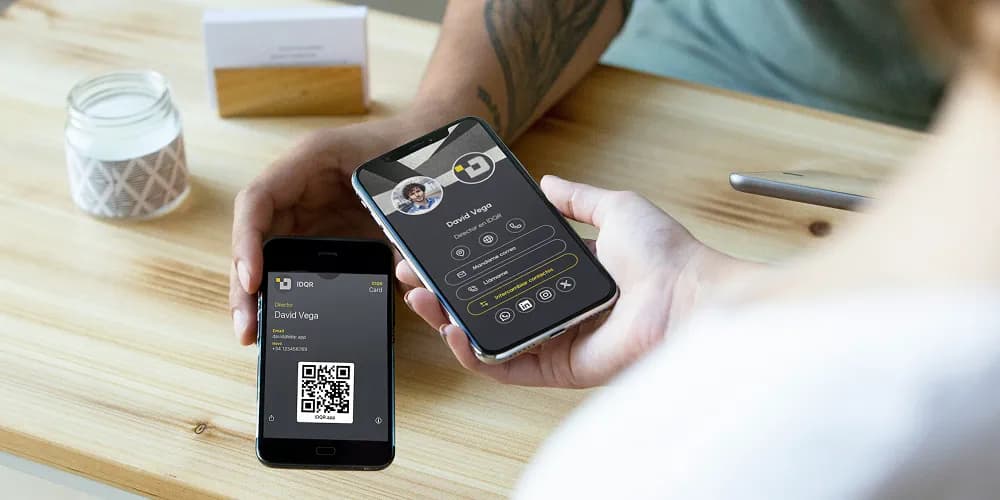
The fastest way to share a digital business card at a networking event is to show the QR code from your Apple Wallet or Google Wallet pass. The other person scans it with their phone camera, your card opens in their browser, and they save your details. Nobody needs to install an app. For other situations, send a direct link in a message, print a QR code on your badge or slides, and let your email signature handle the follow-up.
Before the event: get your card ready
Ten minutes of preparation the day before saves you awkward moments at the event.
- Fill in the essentials. Name, role, company, phone, email and the one or two links that matter most, such as LinkedIn, your website or a booking page. Leave out anything you would not hand to a stranger.
- Add your card to your wallet. Save it as an Apple Wallet or Google Wallet pass so your QR code is always one gesture away. Our step-by-step Wallet guide shows how in under a minute.
- Test the scan. Ask a colleague to scan your QR code from arm's length, then check that every button on your card opens the right place.
- Keep your link handy. Save your card link as a text shortcut on your phone so you can paste it into WhatsApp, LinkedIn or a text message in seconds.
- Have a printed QR code as backup. A QR code on your badge, booth or phone case keeps working even when your battery does not.
At the event: 4 ways to share your card
1. Show the QR code from your wallet
This is the method you will use most. On iPhone, double-click the side button to open Apple Wallet. On Android, open Google Wallet from your quick settings. Hold up your phone, the other person points their camera at the code, and your card opens in their browser, ready to save. The pass is stored on your phone, so the code appears even when the venue Wi-Fi is struggling.
Best for: one-to-one conversations.
2. Put your QR code where people already look
Print your QR code on your name badge, the last slide of your talk, a table sign at your booth or a sticker on your phone case. Several people can scan it at once without waiting their turn.
Best for: speakers, exhibitors and group conversations.
3. Send a direct link
Sometimes a scan is not practical. You are on a video call, you connected with someone on LinkedIn before the event, or their camera will not focus. Paste your card link into the chat and they get exactly the same card as if they had scanned it.
Best for: virtual and hybrid events, and messaging people you plan to meet.
4. Let your email signature carry the follow-up
IDQR generates an email signature from your digital card, with a link that leads straight back to it. Every follow-up email you send after the event becomes another way for people to save your details.
Best for: the day after the event, and every email you send day to day.
Don't just share: collect their details too
Networking works in both directions. When someone opens your IDQR card, they can share their own contact details with you during the same visit, so you leave with their information instead of hoping they will get in touch. Each exchange is saved to your contacts with its date, so later you can see who you met and where.
Some people will still hand you a paper card. You do not need to type it up that evening, because the IDQR AI card scanner reads the card from a photo and adds it as a contact. If your company has connected HubSpot or Salesforce, exchanged contacts also sync to your CRM automatically.
After the event: follow up and measure what worked
Send a follow-up within 24 to 48 hours, while the conversation is still fresh. One specific detail from your chat makes the message stand out from the others they will receive that week.
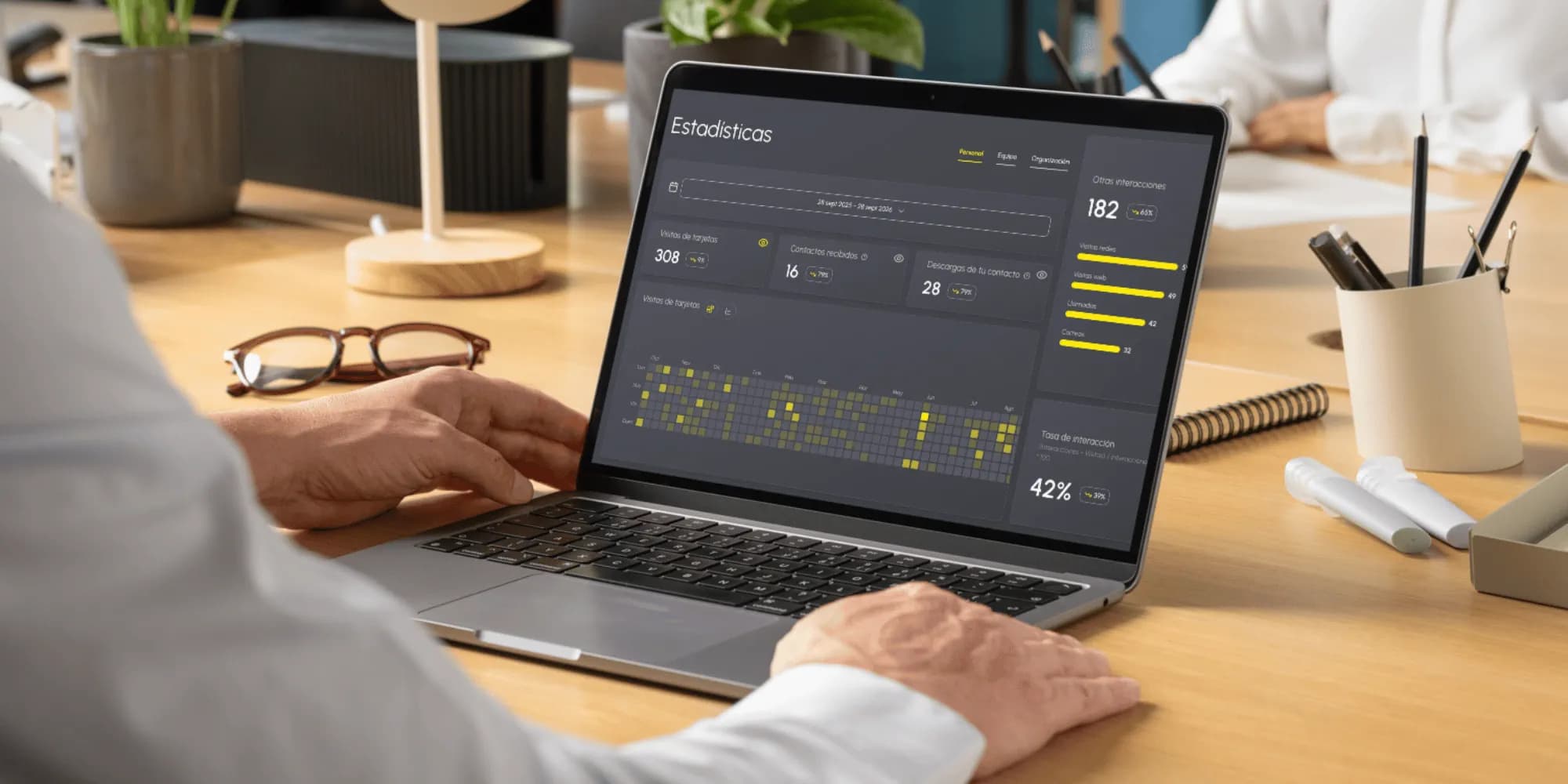
Then check your analytics. IDQR records card visits, contacts shared with you, contacts others saved and clicks on each button on your card. Filter by the dates of the event and you can see whether it produced real opportunities or just polite conversation. The conversion funnel shows how many visits turned into contact exchanges, and over a few months it tells you which events are worth your time and which ones to skip next year.
Networking tips that make your card work harder
- Lead with the conversation, not the QR code. Share your card once there is a reason to stay in touch, not as your opening line.
- Give people a reason to scan. “Scan this and you'll have my calendar link” gets more saves than “Here's my card”.
- Keep your card focused. One clear main action, such as booking a call or visiting your portfolio, works better than ten links.
- Update your card before each event. New role, current offer, the right link. Your card link always shows the latest version, so people who scanned it months ago see your current details too.
- Note the context straight away. A one-line note on your phone about what you discussed makes your follow-up much easier to write.
Going to an event as a team?
When several colleagues go to the same event, consistency matters. With IDQR team management you create on-brand cards for everyone from one dashboard, so every card shares the same look and nobody needs to install anything. The team leaderboard shows who exchanged the most contacts and when, so after each event you know which people and which events are filling your pipeline.
Frequently asked questions
Create your card before your next event
Set up your IDQR card in minutes, add it to Apple Wallet or Google Wallet and arrive at your next event ready to share. No app to install, for you or for anyone you meet.
Create your free card