How to Add Your Digital Business Card to Apple Wallet and Google Wallet
09/02/2026

Your phone already carries your boarding passes, your concert tickets and your loyalty cards. Your business card belongs in the same place. Once your IDQR card sits in Apple Wallet or Google Wallet, sharing your details takes two seconds: open the pass, show the QR code, done. No app to open, no hunting for a link, and no paper card that you ran out of two events ago.
This guide covers adding your digital business card to Apple Wallet on iPhone and to Google Wallet on Android, how the pass stays current when your details change, and how to share it once it is there. Budget about a minute per device.
Do not have a card yet? You can create your IDQR card for free first, and the wallet step comes right at the end of the setup.
The short version
- Sign in to IDQR and open your card from the dashboard.
- Open the card actions menu and choose Add card to wallet. On a computer you will see a QR code, so scan it with the phone where you want the card.
- On your phone, tap Add to Apple Wallet or Add to Google Wallet.
- Confirm, and the pass is saved. Any change you make to your card later updates the pass automatically.
What actually gets added to your wallet
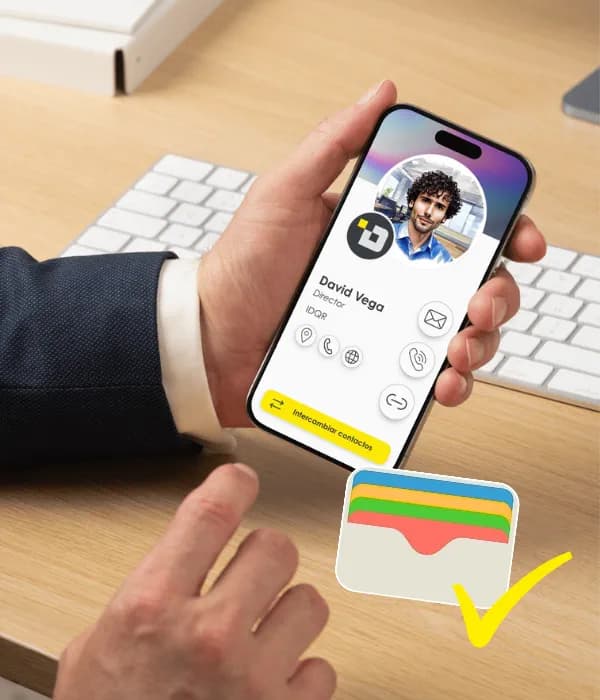
A wallet pass is a small file that Apple Wallet and Google Wallet store natively, right next to your travel and loyalty cards. Your pass carries your name, your role and a QR code.
The important detail is that the QR code points at your live card rather than a frozen copy of your details. Whoever scans it sees your card as it is today, in their browser, with nothing to install. You can show the pass without a connection, although the person scanning it will need one to open your card.
Not built your card yet? Our guide on how to create a digital business card walks through the setup, then come back for the wallet step.
How to add your card to Apple Wallet on iPhone
Do this on the iPhone where you want the card. If you are at your computer, use the QR code that IDQR shows you on the wallet screen and scan it with the phone, which opens the same page there.
- Open your browser on your iPhone and sign in to IDQR.
- Go to your cards, open the actions menu on the card you want, and tap Add card to wallet.
- Tap the Add to Apple Wallet button. iOS downloads the pass and shows you a preview of it.
- Tap Add at the top right of the preview. Your card is now in Apple Wallet.
- Optional: in Wallet, drag the pass towards the top of the stack so it is the first one you reach at an event.
How to add your card to Google Wallet on Android
The flow is the same, with Google's own confirmation screen at the end.
- Make sure the Google Wallet app is installed, which it already is on most Android phones, and that you are signed in to the Google account you want the card on.
- Open your IDQR card in your browser, open the actions menu and tap Add card to wallet.
- Tap Add to Google Wallet. Google opens a save screen with a preview of the pass.
- Tap Save. The pass appears in Google Wallet along with your other passes.
Adding from a computer saves the pass on that computer, which is rarely what you want. Scan the QR code with your phone and finish the steps there.
Change your details once, everywhere
This is the part paper cannot do. When you change a job title, a phone number or a link on your IDQR card, the pass in your wallet updates on its own. You do not re-add anything, and nobody has to be told to throw away the old version.
The same is true for people who already have your card. Because the pass points at your live card instead of a static snapshot, a contact who scanned you six months ago still lands on today's details. Wallet synchronization is included on every plan, the free one too.
How to share your card from your wallet
Open the pass and show the QR code. The other person scans it with their normal camera app, your card opens in their browser, and they can save your details straight into their contacts. They need no IDQR account and no app, which matters when you are standing in front of someone who has forty seconds for you.
The web link and your email signature still cover email, chat and your social profiles. The wallet pass is simply the fastest option when you are face to face.
Every one of those scans is measured: views over time, which links people clicked, and how many interactions turned into a saved contact. The features page covers what the dashboard tracks.
If something does not work
Almost every problem here comes down to which device you are on.
- Nothing happens on your computer. A wallet pass is meant for a phone. Scan the QR code on the wallet screen with the device where you want the card.
- You changed phones. Passes live on the device and the account you added them to. Sign in to IDQR on the new phone and add the card again, which takes a minute.
- You manage more than one card. Each card gets its own pass, so a personal card and a company card can sit side by side in the same wallet.
- The QR code will not scan. Turn your screen brightness up and hold the phone still for a second. Failing that, send your card link instead and the result is the same.
Frequently asked questions
Put your card in your wallet today
Create your IDQR card in minutes, add it to Apple Wallet or Google Wallet, and share it with a QR code wherever you are. No app required, for you or for the people you meet, and every interaction shows up in your analytics.
Create your free IDQR card